AnyPortrait > Manual > Final Rotation Correction
Final Rotation Correction
1.7.0
Skeletal animation is executed through a multi-stage process.
Excluding specialized operations such as physics effects, these processing stages are broadly categorized into "FK" and "IK" calculations.
Animation data based on FK is calculated first, followed by motion adjustments driven by IK options; this sequence can sometimes lead to unintended results.
In particular, the orientation of a bone moved by IK may shift significantly compared to its FK-based state.

To address this issue, AnyPortrait v1.7.0 introduces a step called "Final Rotation Correction."
Final Rotation Correction operates at the end of the IK processing stage and serves to adjust the bone's rotation angle determined during that stage.
This page explains the process of applying Final Rotation Correction and the available options.
It also presents an example that incorporates Bone Constraint.
Note
Before reading this page, we recommend that you first read the following manual on IK.
- IK Settings
- IK Controller
- Bone Constraints
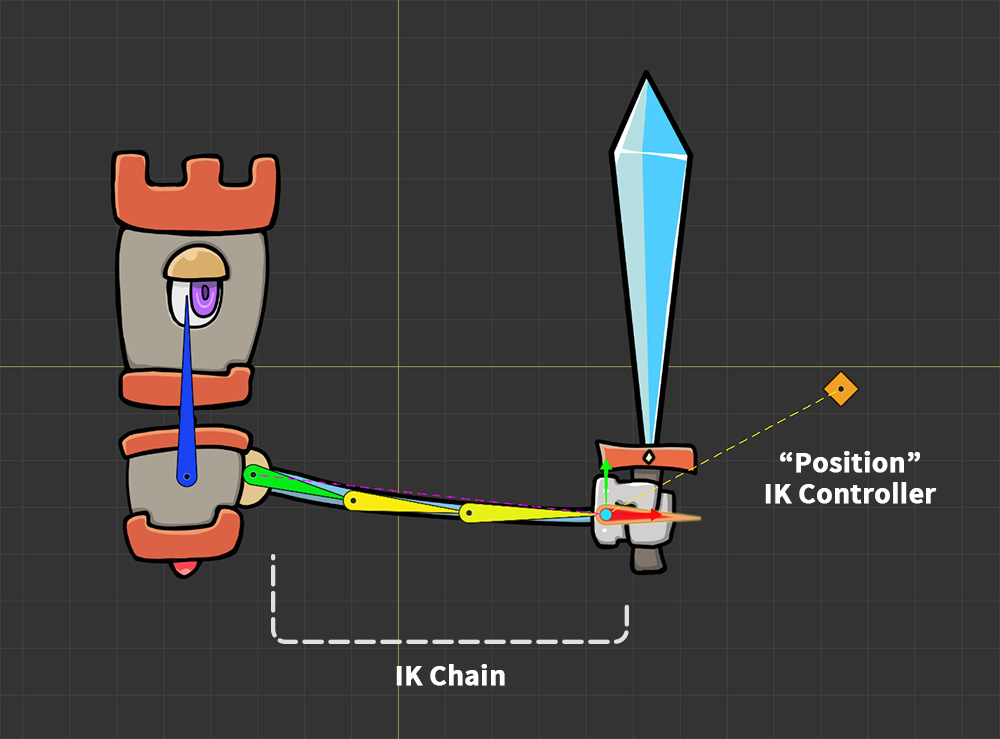
We have prepared an example of a robot swinging a sword.
To observe the effect of Final Rotation Correction, you should use the IK function.
After setting up the IK chain as shown above, configure an IK controller of the "Position" type.
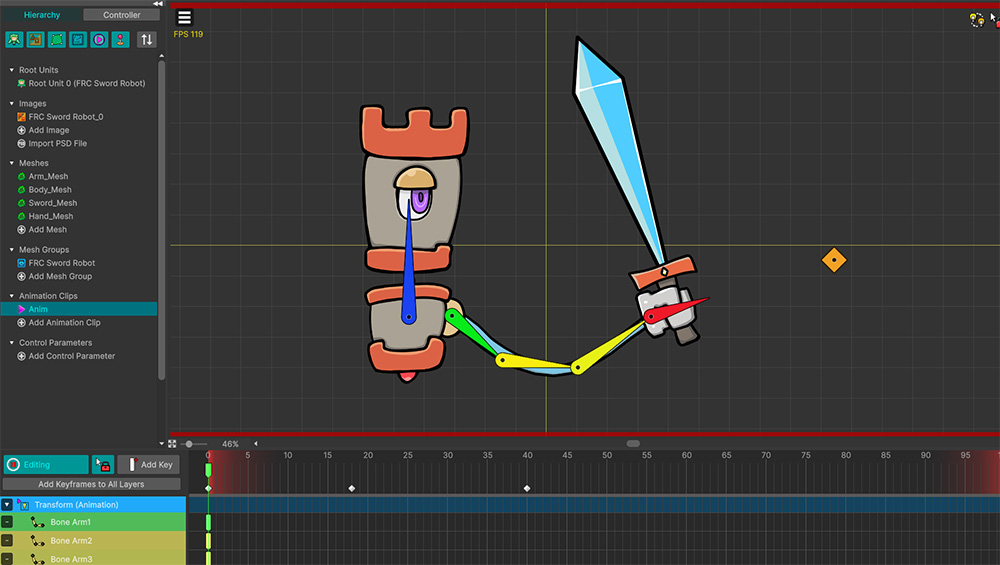
Create an animation of a robot holding a sword.
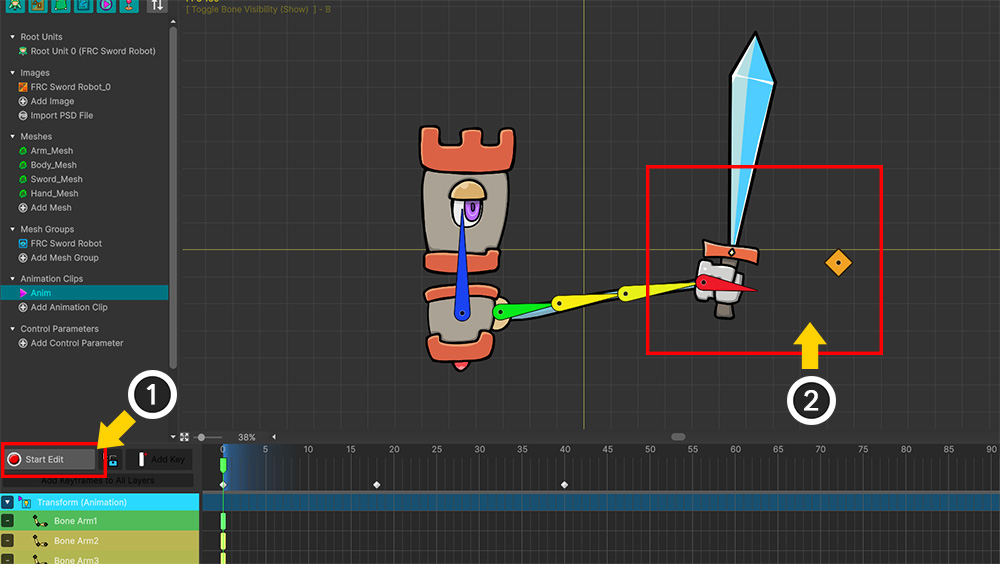
(1) When Edit Mode is turned off, (2) the IK controller activates, causing the robot's arm to point toward the target.
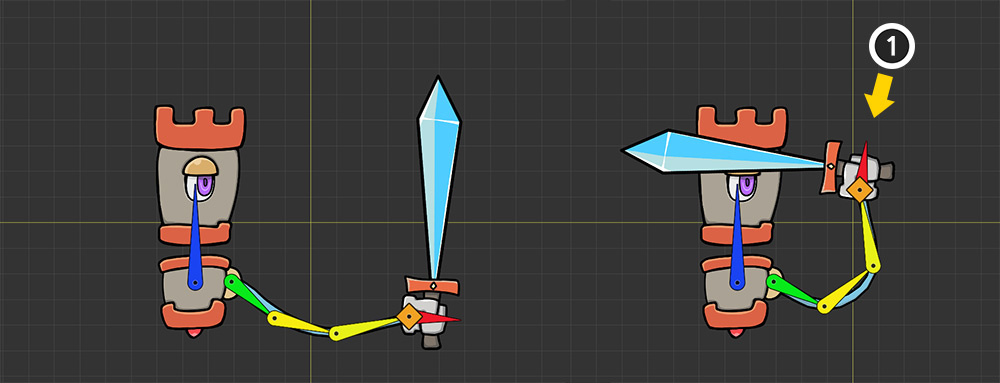
This allows you to easily create animations using the IK controller's Effector Bone.
(1) However, depending on the position of the Effector Bone, the sword might end up pointing toward the robot's face, resulting in an awkward pose.
To resolve this issue, let's apply Final Rotation Correction.
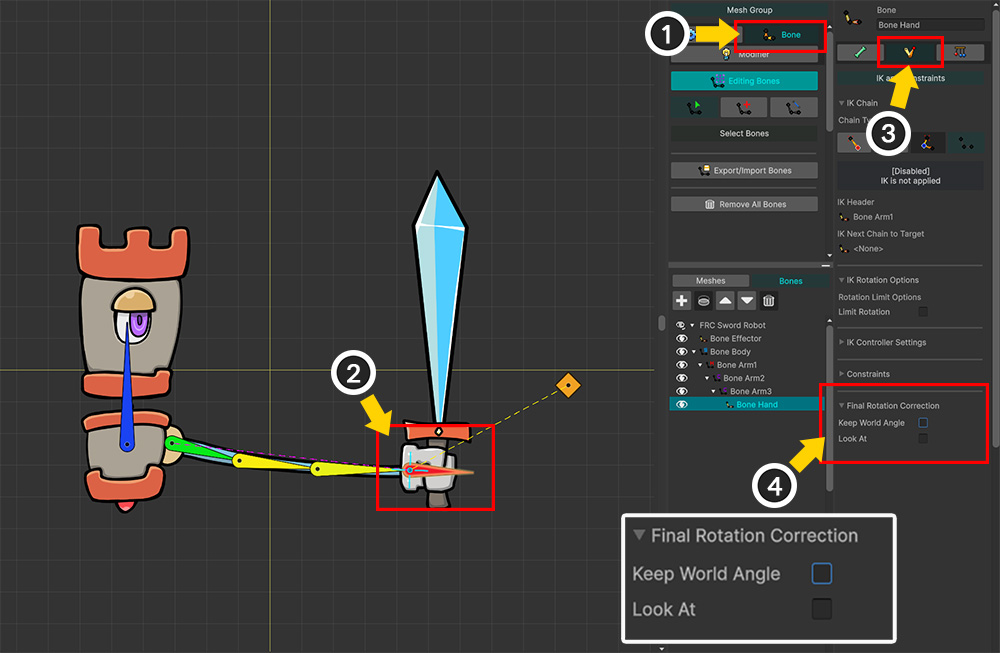
(1) Select the Bone tab on the mesh group editing screen.
(2) Select the bone to which the IK controller is applied.
(3) Select the IK and Constraints tab.
(4) You will see the Final Rotation Correction item and its options.
These options are as follows:
1. Keep World Angle : Preserves the bone's rotation angle in world space—as edited in FK—and reapplies it at the end of the IK calculation.
2. Look At : Rotates the bone to face another bone at the end of the IK calculation.
The Keep World Angle and Look At options can be set simultaneously.
When both options are enabled, Keep World Angle is applied first, followed by Look At.
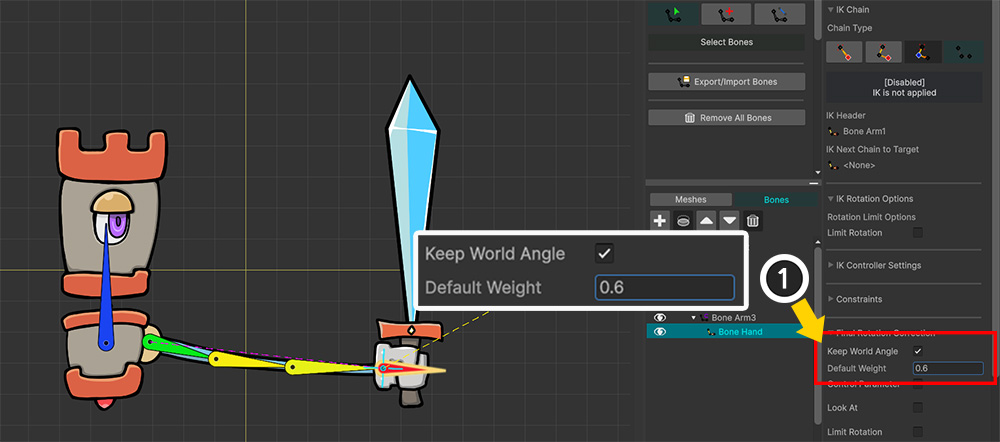
First, let's apply Keep World Angle.
(1) Enable Keep World Angle.
(2) Default Weight determines the extent of the correction. Here, we entered "0.6" to apply it only partially.
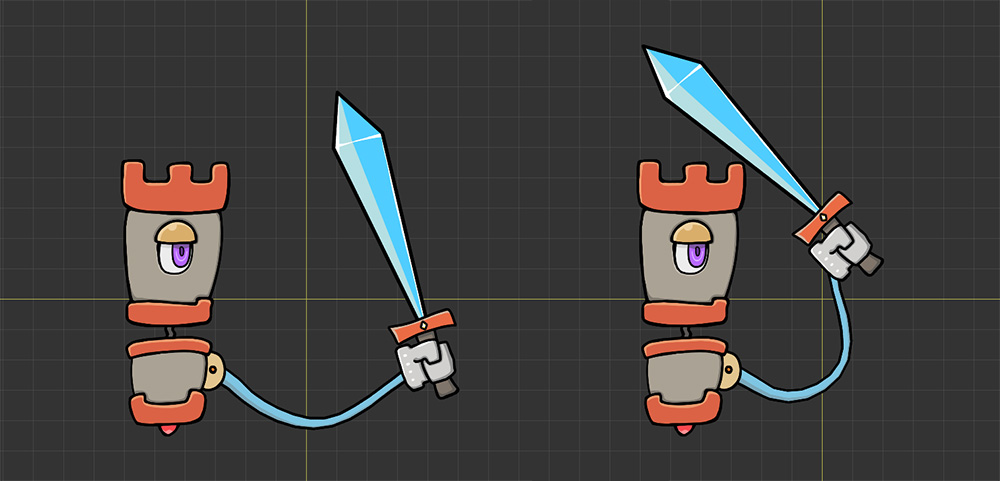
If you play the animation again, you will see that the hand holding the sword rotates less, preventing it from pointing toward the face.
Since the Keep World Angle option restores the angle to its FK state, the pose set in the keyframe is reflected in the IK result.
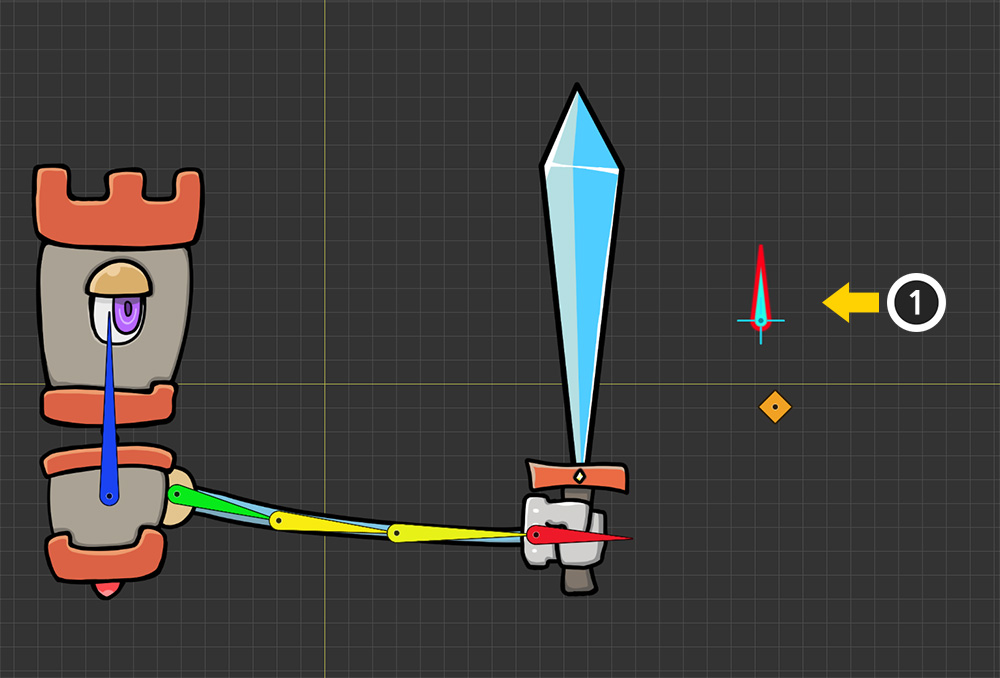
Next, let's use the Look At option instead of Keep World Angle.
(1) Add the bone to be used as the target for Look At.
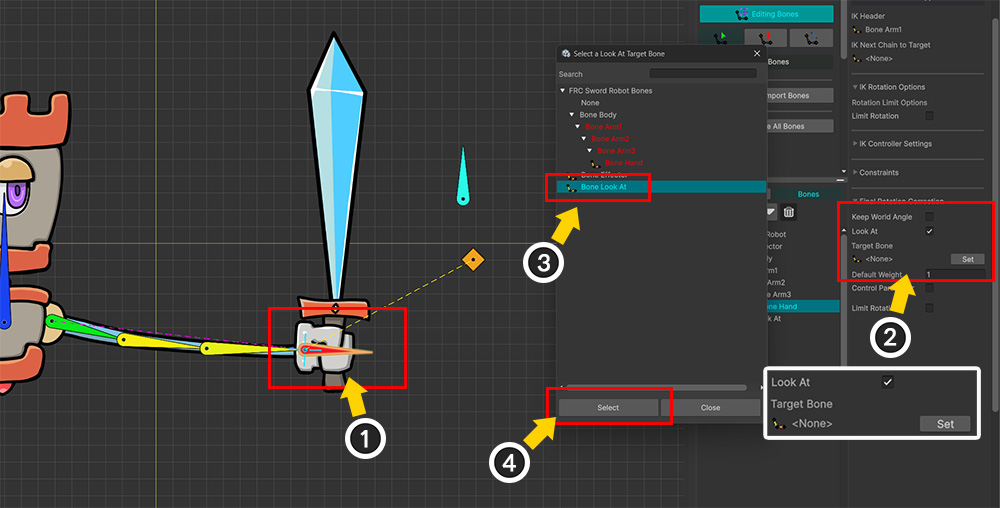
(1) Select the bone with the IK controller applied.
(2) Enable Look At and click the Set button.
(3) Select the bone added previously.
(4) Click the Select button.
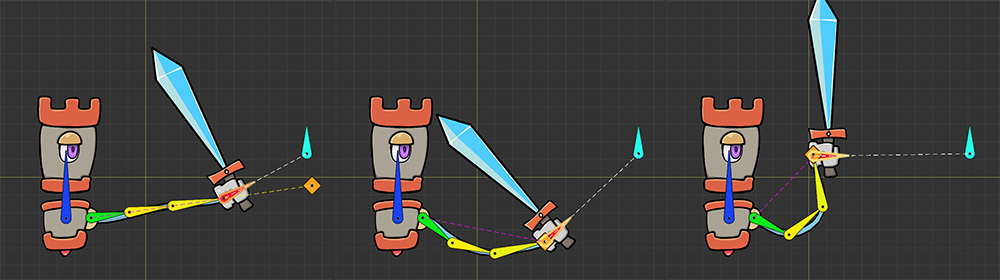
Let's play the animation.
This time, you can see the hand tracking a specific bone—independent of the IK controller.
The Look At option uses an external bone to determine the adjustment angle and is effectively used to lock the orientation of a bone.
The Look At option functions similarly to the "Look At IK Controller."
The results are virtually identical, particularly when a bone rotates independently without an IK chain.
Although the results are similar, please consider the differences in supported detailed options and processing order when selecting the appropriate feature for your needs.
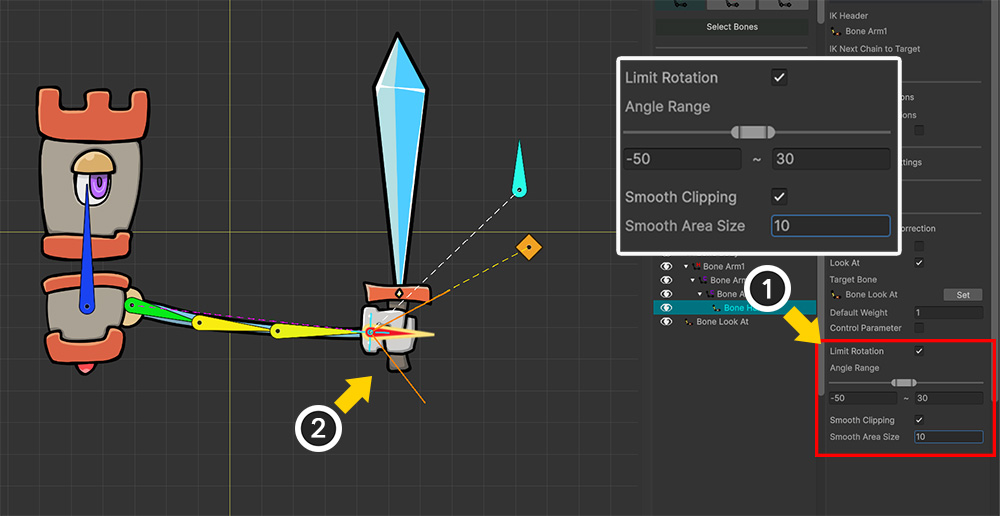
Let's look at the other options.
The Limit Rotation option appears when either Keep World Angle or Look At is enabled.
This option limits the range of the bone's rotation angle.
When the Smooth Clipping option is enabled, the limit range is softened by the Smooth Area Size value, resulting in a smooth transition at the limit.
You can view the limited angle range in the workspace.
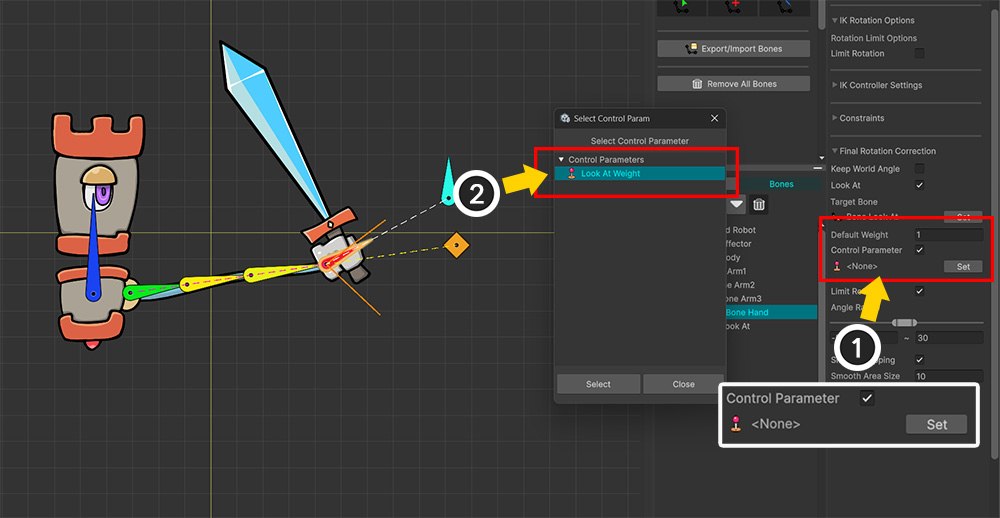
You can assign individual weights to Keep World Angle and Look At.
In particular, by connecting a Float-type Control Parameter, you can adjust the degree of Final Rotation Correction in real time.
Example of using the Bone Constraint together
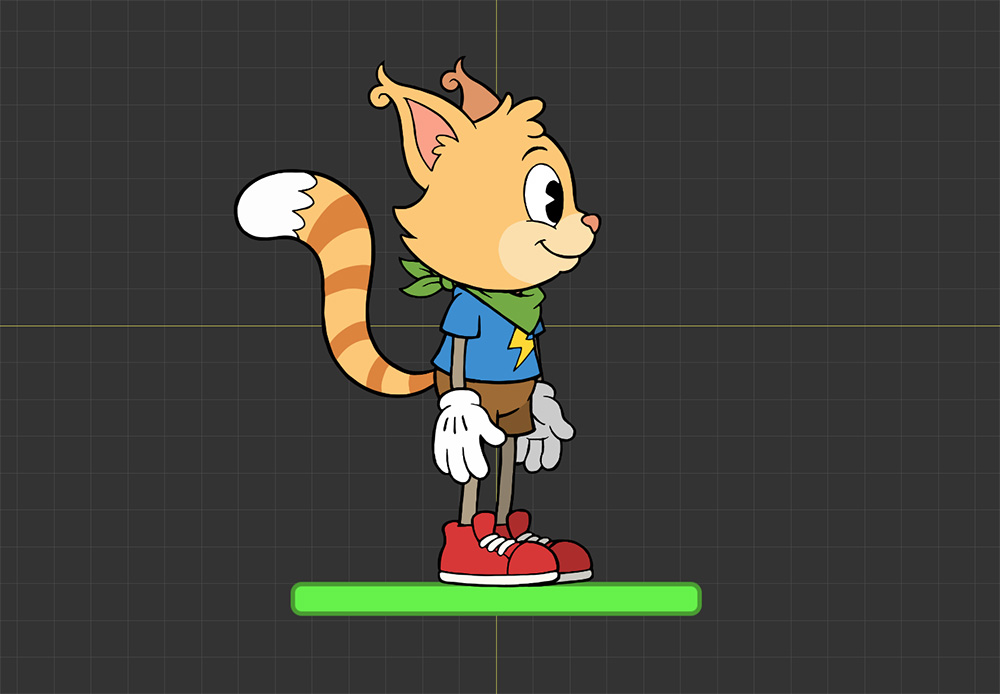
This time, let's use a Bone Constraint instead of an IK controller.
As shown above, we have prepared a cute character that looks like it belongs in a 2D game.
We have added a green box beneath the character's feet to represent the "ground."
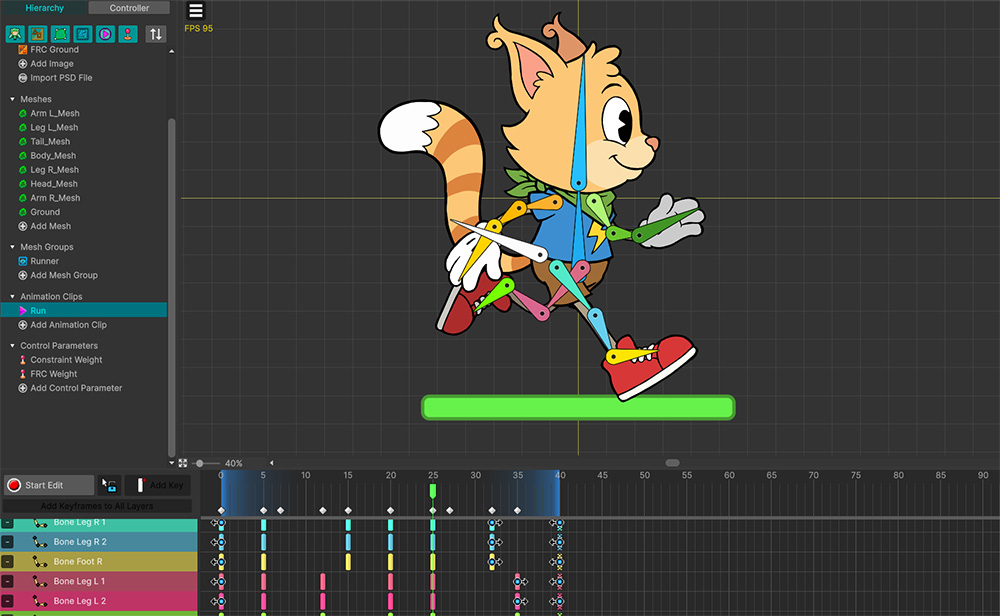
We added bones to create the character's "running" animation as shown above.
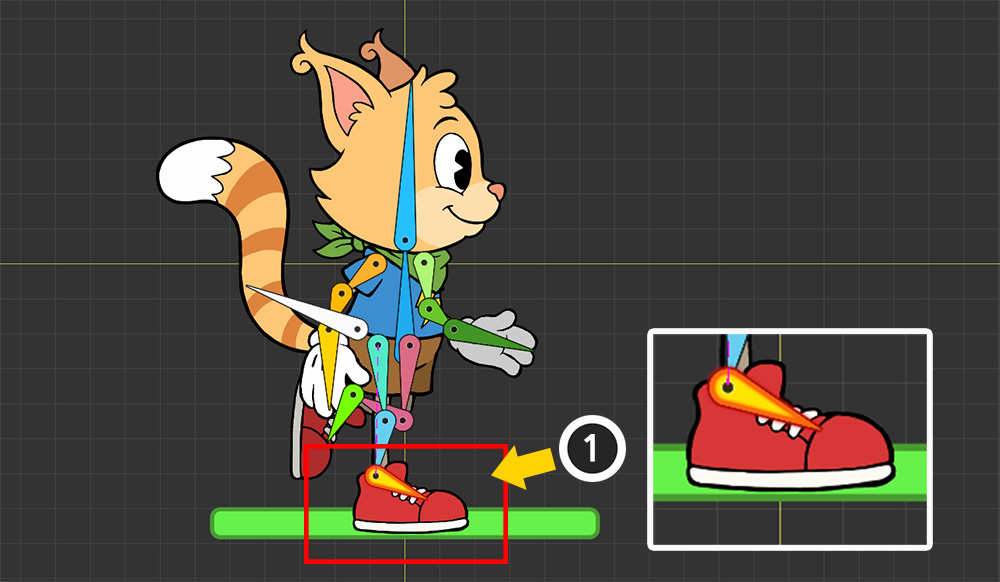
However, you may notice moments where the character's feet dip below the ground.
To resolve this issue using keyframe animation, you would need to specify the position of the character's feet for every single frame.
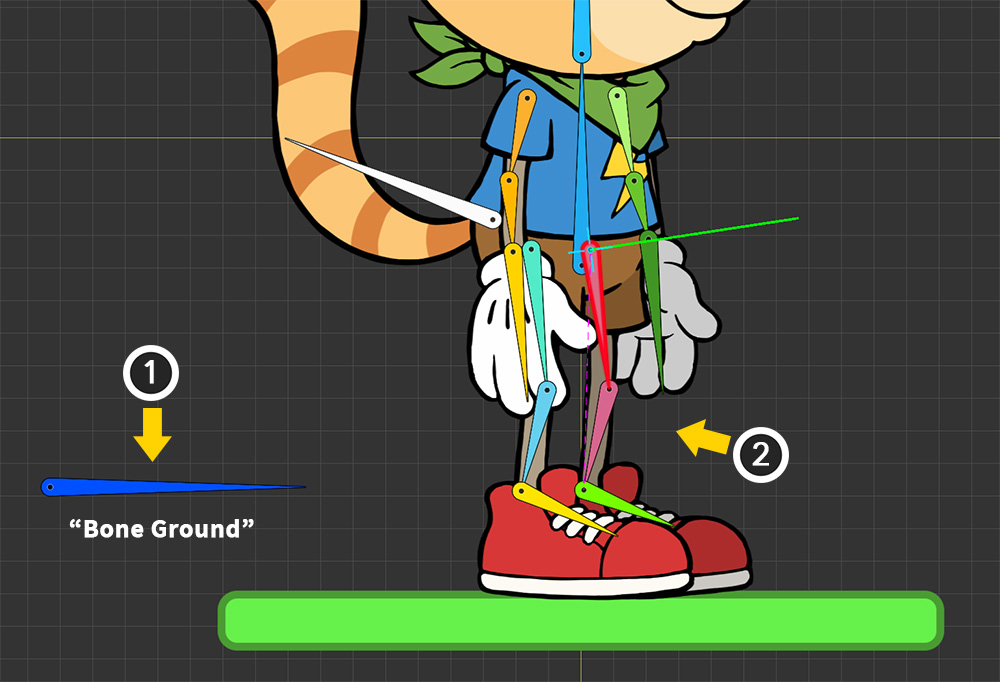
However, you can easily solve this problem by using constraints and IK.
(1) Create a bone named "Bone Ground" positioned at the Y-coordinate of the ground.
(2) Set up an IK chain on the bones of the character's legs.
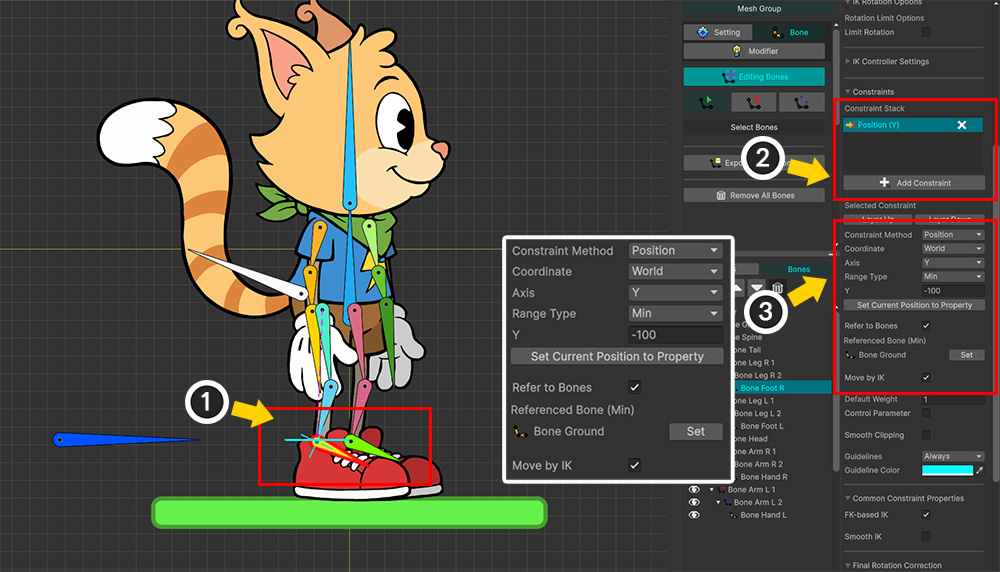
(1) Select the bone corresponding to the character's foot.
(2) Add a Constraint.
(3) Configure the constraint as shown in the image above so that the character's foot is positioned above "Bone Ground."
- Constraint Method : Position
- Coordinate : World
- Axis : Y
- Range Type : Min
- Refer to Bones : Enabled targeting "Bone Ground"
- Move by IK : Enabled
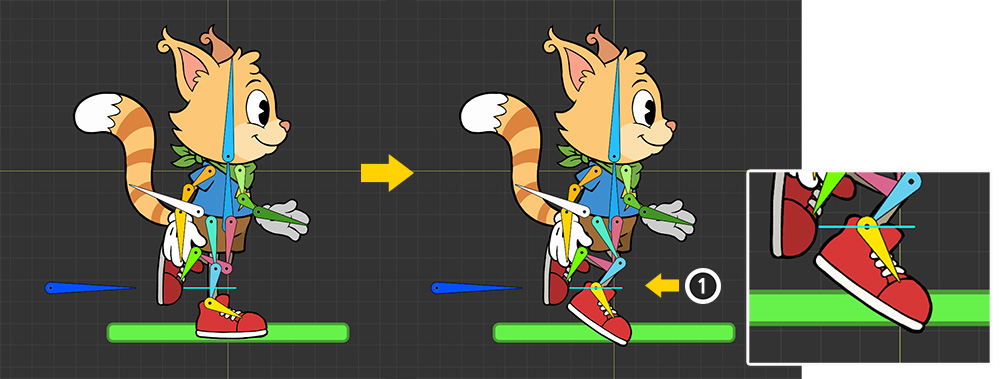
Now, when you play the animation, you can see that the character's foot does not sink below the "Bone Ground."
This effectively prevents the character's foot from going underground.
(1) However, the foot is still pointing downwards, which looks a bit unnatural.
This occurs because, although the IK system was activated by the constraint, the resulting IK movement did not control the angle of the character's foot.
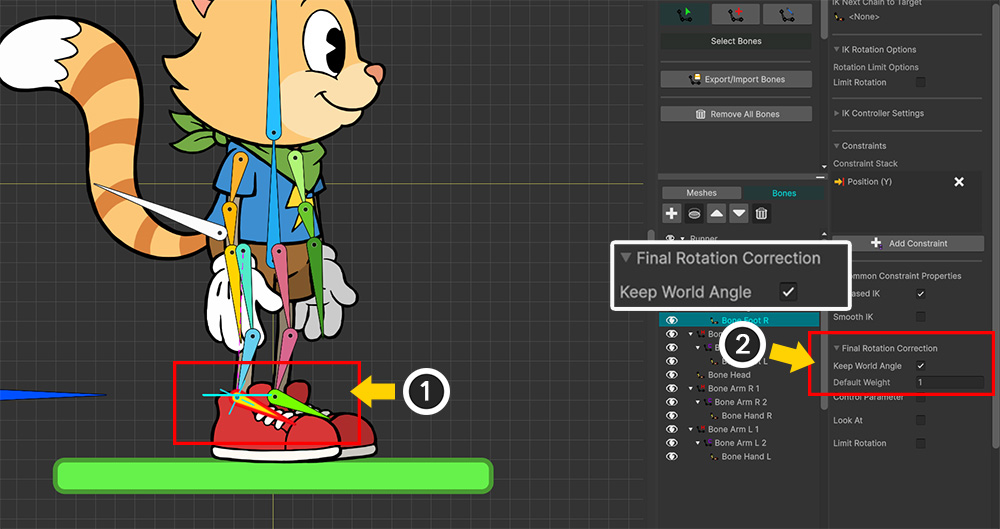
Return to the mesh group editing screen and apply Final Rotation Correction.
(1) Select the bone to which the constraint was applied.
(2) Enable the Keep World Angle option under Final Rotation Correction.
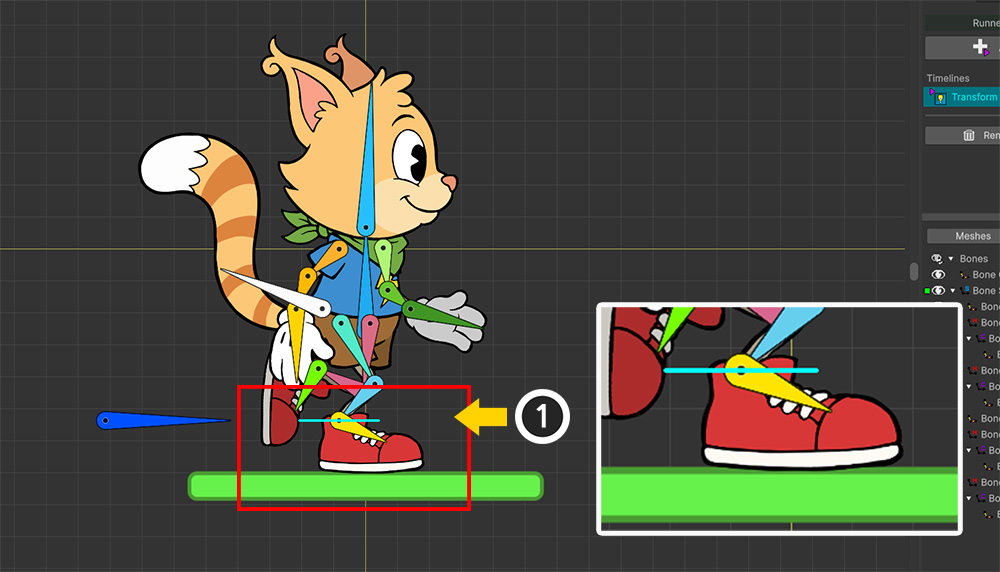
The angle of the character's foot is now natural.
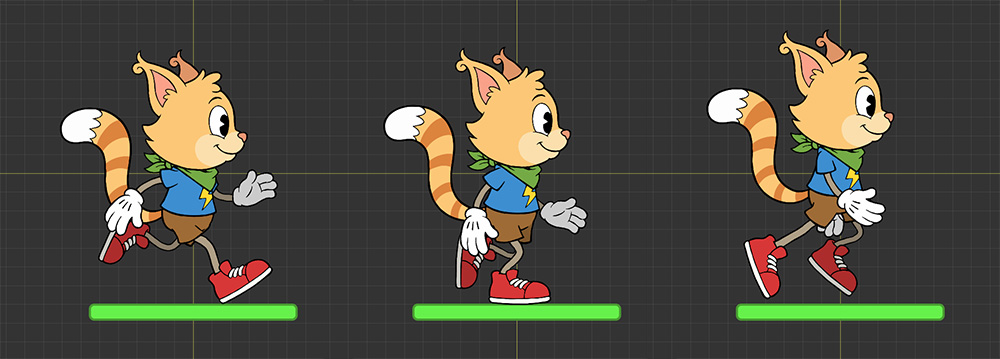
An animation of running with a more natural foot-to-ground contact has been completed.
On this page, the Final Rotation Correction option was applied to bones configured with IK controllers or constraints.
However, Final Rotation Correction can be used regardless of whether IK functionality is enabled.